Customers & segments
Customers lists everyone who has bought from you or signed up — with their orders, addresses, tags, notes, marketing consent, store-credit balance, and any custom fields you collect. Segments turn that list into audiences that maintain themselves so you can target campaigns, discounts, and tax zones.
The customer profile
Open Customers and select anyone to see their profile, organised into four tabs:
- Overview — name, contact details, lifetime Total Spent, order count, first/last order date, Tags, Internal Notes, birthday, tax-exempt flag, and the Marketing status for their email.
- Addresses — saved shipping/billing addresses, with one set as default.
- Store Credit — current balance, the ledger of every credit and spend, and the Issue Store Credit action.
- Activity — a log of logins, invites, address changes, consent updates, and store-credit events.
Tags and notes are free-form. Internal Notes are private to staff and never
shown to the buyer. Tags also drive segments (see below), so a consistent tagging
scheme — wholesale, vip, trade-show-2026 — pays off later.
Creating a customer manually
You don’t have to wait for someone to check out. Use Customers → Add Customer to create a profile yourself — useful for a wholesale account, a phone order, or a walk-in.
-
Go to Customers → Add Customer.
-
Enter a name. Add an Email or Phone if you have one — either can be the login identifier, or you can leave both blank for a name-only record with no login access.
-
Optionally add Tags, Internal Notes, a birthday, a default address, and any custom fields.
-
Choose whether to Send Invite immediately. When on, the customer gets an email/SMS invite to set up their account; when off, the profile is created silently and you can invite later from the profile.
-
Save.
Marketing consent
A customer’s email marketing status is one of four states, shown on the Overview tab under Marketing:
| State | Meaning |
|---|---|
| Subscribed | Opted in — eligible to receive marketing email. |
| Not subscribed | No consent record exists yet (the default). |
| Pending | Awaiting double-opt-in confirmation. |
| Unsubscribed | Opted out — suppressed from all marketing email. |
You record a customer’s consent; you don’t grant it on their behalf. To update it, open the Marketing status and choose Subscribed, Pending, or Unsubscribed. Recording Subscribed requires you to confirm that the customer actually gave consent. Recording Unsubscribed adds a suppression so they never receive marketing email again — even if they later match a segment.
Store credit
Store credit is a balance you can grant a customer and they can spend at checkout — useful for goodwill gestures, refunds-to-credit, or promotions.
-
Open the customer, go to the Store Credit tab, and choose Issue Store Credit.
-
Enter an Amount (in your store currency), an optional Note explaining the reason, and an optional Expiration Date.
-
Confirm. The balance updates immediately and the credit appears in the ledger.
Every movement is recorded in the store-credit ledger with the amount, the running balance, a reason (refund, promotion, adjustment, or order payment), and any note — so you always have an audit trail. At checkout the buyer can Apply store credit to reduce what they owe, and any expiry you set is honoured.
How segments work
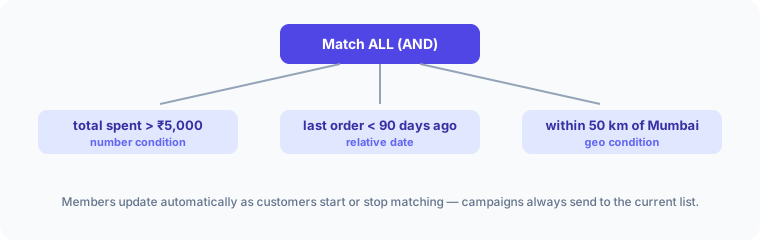
A segment is a set of conditions combined with AND/OR groups. There are two kinds:
- Dynamic segments update themselves. Membership is recomputed from your conditions, so a “VIP” segment always contains today’s VIPs — not the ones who qualified when you created it. Use these for almost everything.
- Static segments are a fixed, hand-picked list of customers you add and remove manually. Use these for one-off lists — a trade-show invite, a curated VIP roster — where membership shouldn’t change on its own.
The segment type is chosen at creation and cannot be changed afterwards.
Starter segments ship with your store
You don’t have to build common audiences from scratch — every new store is seeded with thirteen dynamic segments you can use immediately, duplicate, or edit:
| Segment | Who it contains |
|---|---|
| Email subscribers | Customers subscribed to email marketing |
| Repeat customers | Two or more orders placed |
| New customers | Joined in the last 30 days |
| Abandoned checkouts (30 days) | Abandoned a checkout in the last 30 days |
| Never purchased | No orders yet |
| Lapsed customers | Past buyers with no order in over 90 days |
| Loyalty members with 500+ points | Enrolled loyalty members holding 500 points or more |
| Recent reviewers | Left a product review in the last 90 days |
| Successful referrers | Referred a friend whose referral qualified or was rewarded |
| COD-heavy customers | Two or more cash-on-delivery orders |
| Waiting for restock | Have an active back-in-stock request |
| Upcoming event attendees | Hold a ticket for an event starting soon |
| Video reviewers | Posted a review that includes a video |
To start from one, open it and choose Duplicate — this opens the create form prefilled with its conditions so you can tweak them without touching the original. A Start from a template gallery in the create form offers more ready-made starting points (high spenders, has a location, and others); templates only show fields your store actually supports.
Building a dynamic segment
Segments are written in a small query language — SegmentQL — in an editor with
autocomplete, so you compose conditions the way you’d type a search rather than
clicking through form rows. A condition looks like amount_spent >= 500; combine
conditions with AND / OR and parentheses.
-
Go to Customers → Segments → Create Segment.
-
Give it a name and keep the type as Dynamic.
-
Write your conditions on the
WHEREline of the editor. Autocomplete offers the valid attributes, then operators, then values at every step — you never have to memorise names. For example:amount_spent > 5000 AND (customer_regions = 'in-tn' OR customer_regions = 'in-ka'). -
Anything invalid is underlined in red — hover it to see how to fix it. The Definitions panel lists every attribute with a description, and Templates inserts a ready-made query you can adjust.
-
Press Run (or
Ctrl/Cmd+Enter) to see the live member count and a preview of matching customers below the editor. -
Save. The segment is immediately usable in campaigns and automations.
Value suggestions come from your data
For free-text attributes, the value dropdown isn’t a guess — it lists distinct values that actually exist in your store, already written the way the query needs them.
That matters most for location. Cities and regions aren’t stored as plain
names: customer_cities matches a country-region-city composite with
punctuation stripped (in-tn-chennai), and customer_regions matches
country-region (in-tn). Typing customer_cities = 'Chennai' matches nobody.
The dropdown shows the readable label — Chennai, TN, IN — and inserts the
composite value for you, so you never have to know the format.
The same suggestions cover discount codes, SKUs, vendors, product types, storefront paths, order shipping and billing geo, store-credit currencies, RFM score strings, email domains, customer languages, and postal codes.
Resource IDs get the same treatment from the other direction: autocomplete searches products, variants, collections, locations, brands, and campaigns by name and inserts the ID, and any ID already in the query is annotated with the resource’s title in dim inline text — so a saved query stays readable months later.
Previewing and sorting matches
Run fills the preview table below the editor with matching customers, and
the count above it (10,000+ once it passes ten thousand). Sort by orders
that preview server-side — by customer name, email, order count, or amount
spent, ascending or descending — and applies to the first page of results.
Choosing Default returns to newest-first order with normal pagination
through the whole segment.
What you can filter on
| Condition type | Examples |
|---|---|
| Spend & orders | total spent, number of orders, products/collections purchased, order channel, payment method (COD, deposits), discounts used, refunds and returns |
| Dates | first/last order date, account-created date — absolute, or relative (IN LAST 90 DAYS) |
| Recurring dates | birthdays and anniversaries — customer.birthday IN MONTH May for greeting campaigns |
| Location | city/state/country — or distance from a point for local delivery or store events |
| Engagement | abandoned checkouts, email opens/clicks, storefront behaviour (viewed, added to cart, searched) |
| Profile | tags, marketing consent, account state, walk-in customers |
| Loyalty, reviews & referrals | points balance and tier, review activity (including photo/video reviews), referral status |
| Gift cards & store credit | gift-card balance and expiry, store-credit balance |
| Events & restocks | upcoming event ticket holders, back-in-stock requests, cancellation/return requests |
| Custom fields | any customer metafield — B2B price band, preferences, anything you store |
The attribute reference documents every attribute with its type, operators, and examples.
Operators
Each attribute accepts the operators that make sense for its type, written as
query syntax — =, !=, >, >=, <, <=, BETWEEN, CONTAINS,
STARTS WITH, IN (...), IS NULL / IS NOT NULL, IN LAST / IN NEXT
duration forms, IN MONTH / ON for recurring dates, and MATCHES (...) for
related records like orders and reviews. Autocomplete only ever offers valid
combinations, and saving enforces the same rules — so IS NULL isn’t offered
on attributes that always have a value (a customer with no orders has
number_of_orders = 0, not a blank), and IN MONTH / ON are limited to
recurring dates such as birthdays and anniversaries. The complete table with
examples is in the
language reference.
Filtering on custom fields (metafields)
If you store extra data on customers as metafields — a B2B price band, a renewal date, a preference — you can segment on it by path:
metafields.b2b.price_band = 'gold'metafields.facts.renewal_date IN NEXT 30 DAYSMetafield conditions need a metafield definition with Use as filter enabled for the customer owner type; if your field doesn’t autocomplete, check its definition under Settings → Custom data. Date and date-time customer metafields also support the recurring-date operators. If a definition that segments rely on is later deleted, the affected conditions are removed automatically, membership is recomputed, and the segment shows a note explaining what changed.
Changing the rules of a segment in use
Editing a live segment quietly changes who receives your campaigns, who qualifies for a discount, and who a tax zone applies to. So when you save rule changes to a segment that campaigns, discounts, tax zones, loyalty campaigns, or catalogs depend on, Sellerlane pauses at a review step before writing them.
The review shows two things:
- What depends on this segment — the campaigns, discounts, tax zones, loyalty point campaigns, and catalogs that use it, so you know what your edit touches.
- The audience delta — the current member count next to the proposed one
(each shown as
10,000+past ten thousand), plus a small sample of the customers who would enter and leave the segment under the new rules.
Read the sample before confirming: a rule that looks tighter on paper often moves people in both directions. Confirm to save, or go back and keep editing. A segment nothing references saves without the extra step.
Refreshing and stale counts
Dynamic membership is recomputed asynchronously, so the member count can lag a save by a moment while the recompute runs. The segment surfaces its state rather than showing a silently stale number:
- Computing / Refreshing — a recompute is queued or running.
- Last refreshed / Last updated — when the count was last accurate.
- Refresh failed — the last recompute errored; the shown count may be stale.
To force a recompute, open the segment (or use its row menu) and choose Refresh / Refresh Now. Relative-date and recurring-date segments also refresh on their own schedule, since “in the last 30 days” shifts every day.
Exporting members to CSV
You can export a segment’s members for a mail-merge, an offline campaign, or your records.
-
Open the segment and choose Export members (CSV).
-
Sellerlane prepares the file in the background — the page shows Preparing your export.
-
When it’s ready the download starts automatically. The CSV contains name, email, phone, order count, total spent, and joined date for each current member.
Using a segment downstream
A saved segment is a reusable audience across Sellerlane:
- Marketing — from a segment, choose Use segment to start a new marketing email with that segment preselected as the audience. See Marketing emails and Marketing attribution.
- Discounts — restrict a discount’s eligibility to a segment, so only matching customers can use it. See Discounts.
- Taxes — attach a segment to a tax zone for tax-exempt or special-rate groups. See Taxes.
Deleting a segment safely
Before you delete, Sellerlane checks where the segment is referenced and shows a “This segment is in use” panel listing the tax zones, campaigns, scheduled emails, discounts, and loyalty point campaigns that depend on it. If anything references it, deletion is blocked until you detach the segment from those first. If nothing references it, you’ll see Nothing references this segment. It’s safe to delete and the delete proceeds.
Troubleshooting
Member count is 0 or hasn’t updated. The recompute may still be running — check for a Computing / Refreshing state and try Refresh. If it stays at 0, your conditions probably match no one; broaden them and preview. New seeded segments and empty rule trees use a “match none” policy, so an empty segment correctly contains nobody rather than everybody.
A customer I’d expect to see is missing. Confirm they meet every AND condition and at least one OR branch, and remember relative-date windows (“last 90 days”) move each day. For marketing use, an Unsubscribed customer still appears in the segment but is suppressed from campaigns — that’s by design.
A city or region condition matches nobody. Location values are stored as
composites, not plain names — in-tn-chennai, not Chennai. Delete the value
and pick it from the dropdown, which inserts the right form. See
Value suggestions.
Saving failed with an edit conflict. Someone else changed the segment’s rules after you opened it. Reload to see their version and reapply your change, or use Save as new.
The export download link expired. Signed links are short-lived. Run Export members again to generate a fresh one.
Member count looks stale after a save. Recompute is asynchronous. Wait for the state to clear or click Refresh to force it.
Next steps
- Segment query language — the full SegmentQL reference: operators, dates, functions, and metafield paths.
- Segment attribute reference — every attribute you can filter on, with types and examples.
- Marketing — target a segment with marketing emails and automations.
- Customer accounts — the buyer-facing login and profile experience.
- Store credit — how credit works end to end.
- Metafields — define the custom fields you segment on.
- Discounts and Taxes — apply a segment downstream.