Returns deep-dive
The full RMA lifecycle with examples in returns.
Diagram viewer: scroll horizontally to inspect the full flow.
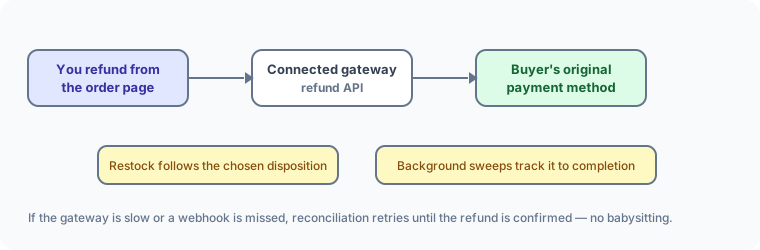
Sellerlane separates two things Shopify also keeps apart: a return is the physical/logistics record of goods coming back to you (with an RMA number, per-item reasons, and receivings), and a refund is the financial record of money going back to the buyer. You can do either on its own, or link a refund to a return. Both are managed from the order: open the order and use the Returns card and the Refunds card.
For the exact distinction between sales reversals and financial payouts, event dates, allocation sums, tender restoration, and profit, see Financial semantics.
Open the order and, in the Refunds card, choose Create refund.
Link a return (optional). If this refund is paying out an approved return, pick it under Return. Leave it on No linked return for a standalone refund (price adjustment, goodwill, fraud reversal, and so on).
Choose a reason. Options are Return, Price adjustment, Shipping adjustment, Goodwill, Fraud, and Other. The reason feeds your reporting, so pick the closest match.
Choose a settlement method. This is the most important field and it defaults to Manual external:
Only Original payment moves money automatically through the gateway. The other three record that you settled it elsewhere — Sellerlane updates the order’s financial status but does not call the gateway.
Set per-line quantities and amounts. Each refundable line shows a suggested unit-net amount; adjust the quantity and the unit net as needed. The Refund total updates live. Partial refunds are fine, and you can refund the same order multiple times up to the captured amount.
Choose restock per line (non-return refunds only). For a fulfilled, physical line on a refund with no linked return, you get a Restock selector — see Restock behaviour below.
Add a note (optional) and choose Create refund.
A refund moves through these states: pending → processing → partially_succeeded → succeeded, or failed, canceled, or requires_review.
For an Original payment refund, a background reconciliation sweep re-checks the connected provider on a backoff schedule (minutes, then hours) until it confirms the outcome — you do not need to watch it. If the gateway keeps a refund pending for an unusually long time, or returns an error, the allocation is flagged requires_review so you can look into it.
You can also drive a refund manually from the Refunds card with the Processing, Succeeded, Failed, and Cancel buttons. These are status-gated: Processing is available only while the refund is pending, and once a refund has succeeded or been canceled the other actions are disabled. Use Cancel to undo a refund — but only before it has settled; you cannot cancel a succeeded refund.
Pick the reason that matches why money is going back, because it drives reporting:
A refund’s payout is not limited to gateway/cash/bank/manual: the data model records store-credit and gift-card allocations on a refund as well, and posts them when the refund succeeds. If you want a refund to go back as store credit, issue it through the store-credit flow and link it to the order — see store credit and gift cards.
You don’t have to refund items to give back shipping. A refund supports its own shipping allocations, so you can return a shipping over-charge (use the Shipping adjustment reason) without touching any line item.
A return is a first-class record with an RMA number, per-item reasons, and a status ladder. Only fulfilled quantities can be returned. Manage returns in the Returns card on the order.
requested → approved → in_transit → partially_received → received → closed. A return can also be rejected or canceled, and a closed/finished return can be reopened.
In the Returns card, choose Create return.
For each fulfilled line you want back, set the Qty (capped at the returnable quantity) and pick a Reason: Damaged, Defective, Not as described, Ordered wrong item, Changed mind, or Other. You can add a Reason note per item.
Optionally add an overall Return note, then choose Create return.
The return is created with an RMA number and status requested.
Approve — open Approve and set the approved quantity per item (it can be less than requested). Optionally set an approved-at time and note. The return moves to approved.
Reject — choose Reject, give a rejected reason (required), and it moves to rejected.
Edit item quantities — adjust the requested quantities on a return before it is fully received.
Close / Cancel / Reopen — Close a finished return, Cancel one that won’t proceed (reason required), or Reopen a closed return back to approved.
Approving a return doesn’t move stock — that happens when goods physically arrive, recorded as one or more receivings (one per shipment).
On an approved return, choose Create receiving. Pick the receiving location (required), optionally add carrier name/code, tracking number, tracking URL, and an in-transit time, then set the planned quantity per item. This marks the goods in transit.
When the parcel arrives, open the receiving and choose Receive. For each item, enter the Received quantity, then split it across dispositions: Restock, Damaged, Quality check, and Discard.
The disposition quantities for an item must add up to the received quantity for that item — the form will warn you otherwise.
Tick Close receiving when complete to finish, then save.
A return becomes partially_received as goods arrive and received once everything approved has been received.
Whether and where returned stock becomes sellable again depends on the path — there is no single blanket rule.
In short: Restock writes the units back to the chosen location and inventory bucket as sellable; Damaged, Quality control, and Discard keep the units out of sellable inventory.
Buyers can resolve some things themselves via self-service — event reschedules/cancellations, digital re-downloads and re-deliveries, gift-card resends, and order cancellation requests — under rules you control. These appear inline on the order for you to Review / Approve / Decline. Self-service does not let buyers refund themselves; you still issue the refund.
To cancel unfulfilled quantities rather than refund paid value, use the cancel flow on the order — see orders & fulfillment.
Returns deep-dive
The full RMA lifecycle with examples in returns.
Orders & fulfillment
Cancel unfulfilled quantities and manage orders in orders & fulfillment.
Self-service
Let buyers raise their own requests in self-service.
Store credit & gift cards
Refund as credit via store credit and gift cards.