Fulfilling orders
A focused walkthrough of recording fulfilments and packages — see Fulfilling orders.
Every order lives in Orders in your admin. Each order tracks three independent things at once: where it is in its lifecycle (open, closed, canceled), whether it’s paid, and how far it is fulfilled.
Diagram viewer: scroll horizontally to inspect the full flow.
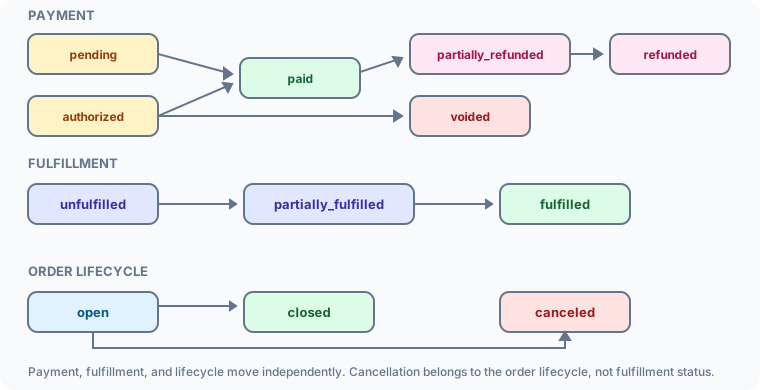
| Status | Meaning |
|---|---|
| pending | Payment started but not confirmed (e.g. UPI approval in progress, or a manual payment method awaiting your confirmation) |
| authorized | Amount reserved by the gateway, not yet captured |
| paid | Captured or otherwise confirmed payment, including a manual collection you marked paid |
| partially_refunded | Some amount refunded |
| refunded | Fully refunded |
| voided | Authorization released without capture |
The order’s overall fulfillment status is one of three values — there is no order-level “cancelled” fulfillment status. Cancellation happens at the fulfillment-order or line-quantity level instead (covered later).
| Status | Meaning |
|---|---|
unfulfilled | Nothing fulfilled yet |
partially_fulfilled | Some line quantities fulfilled |
fulfilled | Every fulfillable quantity is fulfilled |
The Orders list is your daily queue. The toolbar gives you filter tabs, search, sort, a location filter, and — once you select rows — a bulk-action bar.
Filter by tab. Switch between All, Open, Unfulfilled, Unpaid, Closed, and Canceled. The Unfulfilled tab shows orders with items still to fulfil; Unpaid shows orders pending payment.
Search. Type an order number, customer name, email, or phone to narrow the visible rows.
Sort. Choose Newest first, Oldest first, Highest / Lowest total, or Highest / Lowest order number.
Filter by location. Pick a location to see only orders tied to it, or leave it on All locations.
Tick the checkbox on one or more rows (or Select page) to reveal the bulk bar. Before any action runs, Sellerlane re-fetches the selected orders so it acts on fresh data, and only the records that actually qualify are touched.
From the Bulk actions menu:
Each bulk action returns a summary toast — for example “7 of 10 succeeded” or “5 succeeded, 2 failed” — so you always see how many records changed. Every bulk call carries an idempotency key, so an accidental double-click won’t apply the action twice.
The bulk bar also has utilities for the selected orders:
Open an order and find the Fulfillment orders card — the operational plan for what each location should fulfil. An order is split into a fulfillment order per delivery group and location, which is why a single order can have several of them (for example, two items shipping from two warehouses produce two fulfillment orders). Each carries a status:
| Status | Meaning |
|---|---|
open | Ready to fulfil |
on_hold | Paused with a reason; won’t fulfil until released |
closed | Finished — no more work expected |
canceled | Cancelled before fulfilment |
Per fulfillment order you can:
Because fulfillment orders are scoped to a location, multi-location stores naturally split an order by where stock lives. The location on each fulfillment order ties directly to its shipping origin — see Shipping & checkout for how location groups drive rates. If stock isn’t where you expected, use Move to transfer the items to another active location (or a new destination) before fulfilling.
A fulfillment is the actual execution against a fulfillment order. Each fulfillment carries a method, optional packages with tracking, and a status it moves through.
On the fulfillment order, choose Fulfill.
Pick items and quantities. You can fulfil in parts as stock ships; remaining quantities stay on the fulfillment order.
Choose a method — ship, pickup, digital, service, or gift_card.
Optionally set timestamps (packed / shipped / delivered / completed) and a note, then create the fulfillment.
For shipped fulfillments, add a package with Add package:
Enter a tracking number (required).
Optionally add a carrier name, carrier code, tracking URL, and weight (grams).
Save. The package appears on the fulfillment as Carrier · tracking number.
Each fulfillment has its own status flow. Use the row buttons to mark Packed, then Shipped, then Complete — or Cancel the fulfillment. A cancelled fulfillment locks its actions.
The pickup method is for buyer collection rather than carrier shipping — there
is no package or tracking to enter. POS orders fulfil at the selling
location (the location stamped on the order), and typically carry out with no
shipping at all.
Digital products, license keys, gift cards, and event bookings don’t need packing — Sellerlane can fulfil them automatically once an order’s payment is captured, which also delivers download links, keys, and tickets. Configure it in Settings → Auto-fulfillment.
The Auto-fulfill store default controls everything non-shipping. The shipped default is Auto-fulfill everything:
| Store default | What auto-fulfils on payment |
|---|---|
| Auto-fulfill everything (default) | Every non-shipping item |
| Only digital & gift cards | Digital products and gift cards |
| Only gift cards | Gift cards only |
| Nothing — fulfill manually | Nothing; everything waits for you |
Each non-shipping type can override the store default — Digital downloads, License keys, Gift cards, and Event bookings. Per type you choose Use store default (inherit), Always auto-fulfill, or Hold for manual fulfillment. License keys fall back to the Digital downloads setting when left on Use store default.
When a key pool runs dry at fulfilment time, the License keys policy decides what happens: Hold the item & alert me (the default safe behaviour) or Fail the fulfillment.
You can pin a specific item to Always auto or Always manual, regardless of the type and store rules above. Search for a digital, gift-card, or event product and pin it.
The order’s Digital delivery card shows download access, email delivery, and license assignments. Per grant you can see the download state (downloads used vs. limit), first-activated and last-downloaded times, and the expiry, plus the delivery destination email and any attached assets.
Actions per grant:
For license keys attached to a grant:
Scheduled gift cards can be sent now, rescheduled, or cancelled from their delivery card. Online event meetings (join links, reschedules, regeneration) are managed from the Events dashboard, not the order page.
There is no whole-order “Cancel order” button. The primitive is Cancel items — it cancels only the still-unfulfilled quantities at the line level and releases the inventory those quantities had committed.
Open the order and choose Cancel items.
Set the quantity to cancel per line — only the cancelable (unfulfilled) quantity is offered.
Optionally add a reason and note, then confirm.
Manual-payment orders stay payment-pending until you settle them. From the order (or in bulk from the list):
See Payments and Manual payment methods for the full flow.
The Timeline card aggregates activity from fulfillment, return, receiving, refund, and payment events, plus order creation, newest first. It is read-only — there’s no add-a-comment box. The Notes card shows the order note as display-only text. For structured, queryable data on an order, use Metafields instead.
closed or canceled — check its current status badge.fulfilled. Some quantity is
still unfulfilled — fulfil the remainder, or Cancel items for what won’t
ship. Held items also keep an order partial until released.Fulfilling orders
A focused walkthrough of recording fulfilments and packages — see Fulfilling orders.
Refunds & returns
Move money back and handle RMAs in Refunds & returns and Returns.
Auto-fulfillment
Tune the policy in detail in Auto-fulfillment.
Order routing
How orders split across locations — see Order routing.